Most people think building an AI agent means hiring a developer, writing Python scripts, or paying for an expensive enterprise platform. In 2026, that assumption is completely wrong — and n8n is why.

“The companies saving 30+ hours a week aren’t hiring more people. They’re deploying AI agents that work while everyone sleeps.”
📋 What You’ll Learn
- 🧠 What an AI agent actually is — and how it’s different from a chatbot
- ⚙️ How to set up n8n (cloud or self-hosted) in under 10 minutes
- 🔗 How to connect an LLM brain (GPT-4o or Claude) to your agent
- 🛠️ How to give your agent real tools — web search, email, Google Sheets
- 💾 How to add memory so your agent maintains context across sessions
- 🚀 A working real-world example: a research-and-email automation agent
- ⚠️ The 3 most common mistakes beginners make when building agents
Everyone keeps saying “AI agents are the future.” What nobody tells you is that you can build one this afternoon — without a single line of code, without a computer science degree, and without a $500/month enterprise subscription.
n8n (pronounced “n-eight-n”) is an open-source workflow automation tool that, as of mid-2026, has quietly become the most powerful no-code environment for building real AI agents. It’s not just connecting apps together like a fancier Zapier. It’s giving you a visual canvas where an LLM — GPT-4o, Claude, Gemini, take your pick — acts as a reasoning engine that decides what tools to call, in what order, to complete a goal you’ve defined.
This guide is the exact walkthrough I wish existed when I started. Let’s build something real.
🤖 Phase 1: Understand What You’re Actually Building
Before opening n8n, you need to understand one distinction that trips up almost every beginner: the difference between a workflow and an agent.
A standard automation workflow is a fixed sequence. If X happens, do Y, then Z. It’s rigid. If the input changes, the workflow breaks or produces garbage. You’ve probably built something like this in Zapier — it works until it doesn’t.
An AI agent is different. The LLM inside it reads your goal, looks at the tools available to it, and decides what to do next. It reasons. It adapts. If the web search returns unexpected results, it tries a different query. If an email draft needs more context, it pulls more data before sending. As n8n’s engineering team describes it, agents combine “LLM reasoning, memory, tool access, and action execution into a single visual workflow.”
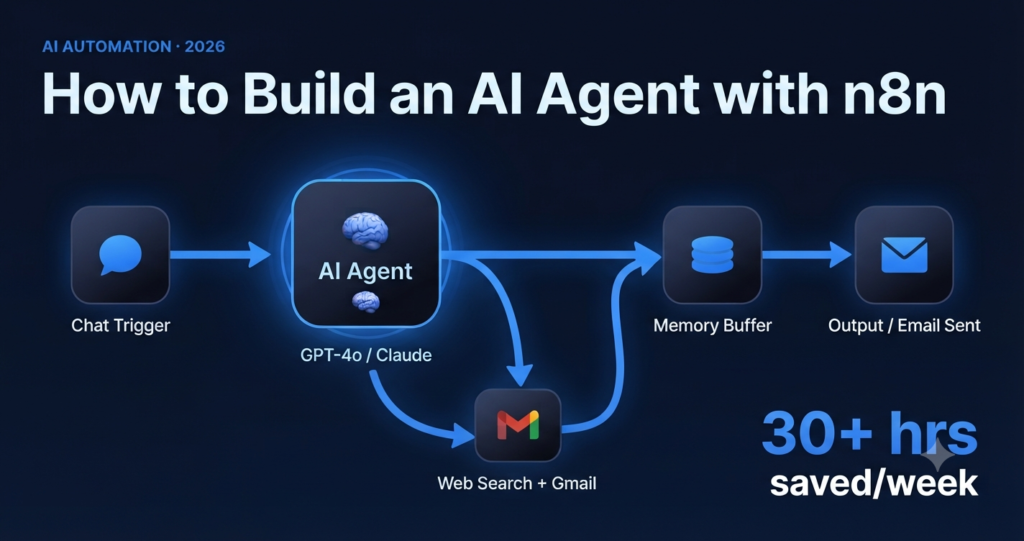
n8n AI Agent Architecture
That architecture is what you’re going to build. Five connected pieces. No code required.
💡 Key Insight
Think of n8n as the body. The LLM is the brain. Tools are the hands. Your system prompt is the job description. Put those four together and you have an agent that works 24/7 without checking Slack.
⚙️ Phase 2: Set Up n8n (10 Minutes or Less)
You have two options here, and the right one depends on your budget and how much control you want.
| Option | Best For | Cost (as of July 2026) | Setup Time |
|---|---|---|---|
| n8n Cloud | Beginners, fast setup | Free trial → $24/month Starter | 2 minutes |
| Self-Hosted (Docker) RECOMMENDED | Power users, cost-sensitive teams | $5–$10/month server only | 10–15 minutes |
| Self-Hosted (Railway / Render) | Non-technical users who want self-hosting | ~$7/month | 5 minutes with template |
For most people reading this, I’d start with n8n Cloud’s free trial to get familiar with the interface, then migrate to self-hosting once you know you’re sticking with it. The cloud version’s free tier gives you enough workflow executions to build and test everything in this guide.
Create your n8n account
Go to n8n.io and sign up for a free cloud account. No credit card required for the trial. Verify your email and log in to the canvas.
Create a new workflow
Click “New Workflow” from the dashboard. Give it a descriptive name — something like “Research + Email Agent.” This habit matters when you have 40 workflows running.
Add your trigger node
Click the canvas and search for “Chat Trigger.” This lets you interact with your agent via a chat interface directly inside n8n. For production, you’d switch this to a Webhook trigger — but Chat Trigger is perfect for building and testing.
Add your credentials
Go to Settings → Credentials → New. Add your OpenAI API key (for GPT-4o) or your Anthropic API key (for Claude Sonnet 4). You’ll reference these credentials when you connect the AI Agent node. Keep these keys secret — treat them like passwords.
⚠️ Heads Up
Never hard-code API keys directly into node fields. Always use n8n’s credential system. If you share a workflow template with hard-coded keys, you’ll expose your account to abuse — and the API bill that follows.
🧠 Phase 3: Add the AI Brain
This is where the magic happens. The AI Agent node is what separates n8n from every other automation tool on the market right now.
Search for “AI Agent” in the node panel and drag it onto the canvas. Connect it to your Chat Trigger. Now you need to configure three things inside the node: the model, the system prompt, and the output format.
Connect your LLM model
Click the “Model” connector on the AI Agent node. Add an “OpenAI Chat Model” node and select GPT-4o, or an “Anthropic Chat Model” node and select Claude Sonnet 4. Both work excellently. GPT-4o is slightly faster; Claude Sonnet 4 tends to follow complex instructions more precisely.
Write your system prompt
The system prompt is the agent’s job description. Be specific. Vague prompts produce vague agents. A good system prompt defines the agent’s role, its output format, and any constraints on its behavior.
Set the output parser (optional but recommended)
For structured outputs — JSON, markdown reports, specific field formats — connect a “Structured Output Parser” node. This tells the LLM exactly what shape its response should take, which makes downstream processing far more reliable.
Here’s an example system prompt for a market research agent — the kind you might use to automatically research a competitor or topic and email a summary to your team:
When given a topic or company name, you will:
1. Search the web for recent news, pricing, and feature updates (last 90 days)
2. Identify 3–5 key findings relevant to a B2B SaaS company
3. Write a concise 300-word briefing in plain English
4. End with a “So What” paragraph: what should we do with this information?
Format: Markdown. Tone: professional. No fluff. No filler phrases.
💡 Pro Tip
The best system prompts define WHO the agent is, WHAT it produces, and HOW it should behave when something goes wrong. Most beginners write only the first part and wonder why their agent goes off-rails on edge cases.
🛠️ Phase 4: Give Your Agent Tools
A brain without hands can’t do much. Tools are what transform your AI Agent from a fancy chatbot into something that actually takes action in the world.
In n8n, tools connect to the AI Agent’s “Tools” input. The LLM sees the tool descriptions and decides when and how to call them — you don’t have to specify the order. That’s the point.
| Tool | What It Enables | Setup Complexity |
|---|---|---|
| Web Search Tool START HERE | Real-time web research, competitor data, news | Low — built into n8n AI nodes |
| Gmail / SMTP | Send emails, draft outreach, notify teams | Low — OAuth or SMTP credentials |
| Google Sheets | Read/write data, update CRM rows, log results | Low — Google OAuth |
| Slack | Post summaries, notify channels, DM results | Low — Slack bot token |
| HTTP Request (Custom API) | Any REST API — CRM, billing, analytics tools | Medium — requires API knowledge |
| MCP Client Tool | Connect to MCP servers for advanced tool access | Medium — new in mid-2026, docs evolving |
For the research-and-email agent we’re building, you need exactly two tools: Web Search and Gmail. Add both as nodes connected to the AI Agent’s “Tools” input. The agent will automatically use web search to gather information, then use Gmail to send the result — in the right order, every time.
According to Dr. Lilian Weng, Head of Safety Systems at OpenAI, in her widely-cited research on LLM-powered autonomous agents, the key components of an effective agent system are planning, memory, and action — exactly the three pillars n8n’s AI Agent node implements. Her framework remains the best mental model for understanding what you’re building.
💾 Phase 5: Add Memory
Without memory, every time a user sends a message, your agent starts from scratch. It forgets everything. That’s fine for one-shot tasks, but for anything conversational — customer support, research assistants, personal productivity bots — you need context persistence.
n8n makes this surprisingly simple. Connect a “Window Buffer Memory” node to the AI Agent’s “Memory” input. This stores the last N messages in the conversation and passes them into every new LLM call. You configure the window size based on your use case — typically 10 to 20 messages for most applications.
Add Window Buffer Memory
Search for “Window Buffer Memory” in the node panel. Connect it to the Memory input on your AI Agent node. Set the context window to 10 messages to start — you can increase this if your agent needs more history.
(Optional) Add Redis for persistent memory
Window Buffer Memory resets when the workflow execution ends. For true persistence across sessions, connect n8n to a Redis database using the “Redis Chat Memory” node. This means your agent remembers the last conversation even days later.
Test with the chat interface
Click “Test Workflow” and open the built-in chat interface. Send a message, get a response, then send a follow-up that references something from the first message. If memory is working, your agent will track the context correctly.
⚠️ Warning
Large context windows cost more tokens per API call. If you’re running a high-volume agent, test with a smaller window first and measure your API spend before expanding. A 50-message window on a busy customer support bot can get expensive fast.
🚀 Phase 6: Deploy and Test Your Agent
Your agent is built. Before you let it loose on real tasks, run it through a proper testing checklist. I’ve seen too many people skip this step and end up with an agent that accidentally emails the wrong people or overwrites a production spreadsheet.
- Test with a simple task that uses each tool at least once
- Test with an ambiguous input — see how the agent handles uncertainty
- Test with a multi-step task that requires the agent to use two tools in sequence
- Check that memory is persisting across messages in the same session
- Verify that emails are sending with correct formatting and no placeholder text
- Review the execution log for any errors or unexpected tool calls
- Set a max token limit on your LLM node to prevent runaway API costs
Once it passes the checklist, activate the workflow. In n8n, this means toggling the “Active” switch in the top-right corner. Your agent is now live and will respond to triggers automatically — whether that’s a chat message, a webhook from another app, or a scheduled time trigger.
💡 Pro Tip
Add a “Human Approval” node before any action that sends external communications or modifies real data. n8n has a native manual approval node that pauses execution and sends you a link — click Approve or Reject from your phone. This single safeguard prevents the most common agent disasters.
❌ The 3 Mistakes That Break Most Beginner Agents
After watching hundreds of people build their first n8n agent, the failures almost always fall into the same three categories. Avoid these and you’ll skip weeks of frustration.
A system prompt that’s too vague
“You are a helpful assistant. Help the user.” That’s not a system prompt — it’s a blank check. The LLM will improvise, and improvisation means inconsistency. Write a system prompt that specifies role, output format, tone, and what to do when the agent doesn’t know something.
Connecting too many tools at once
It’s tempting to give your agent access to email, Slack, Google Sheets, a CRM, and a calendar all at once. The problem: more tools mean more opportunities for the LLM to call the wrong one. Start with two tools maximum. Add more only once the core behavior is solid.
Skipping error handling
APIs fail. Rate limits hit. Web searches return empty results. If you don’t build in error handling, your agent will silently fail — or worse, send a half-finished email because the web search timed out. Use n8n’s Error Trigger node to route failures to a Slack notification so you always know when something breaks.
❓ Frequently Asked Questions
Do I need coding skills to build an AI agent with n8n?
No. n8n’s visual node interface handles all logic, data mapping, and tool connections without code. You’ll need to understand basic concepts like what an API key is and how webhooks work, but both are explained in n8n’s documentation. Most people build their first working agent within an afternoon of starting from scratch.
Which LLM should I use — GPT-4o or Claude Sonnet 4?
Both work well in n8n. GPT-4o (OpenAI) is marginally faster and handles tool-calling with high reliability. Claude Sonnet 4 (Anthropic) follows complex, nuanced instructions more precisely and tends to produce cleaner structured outputs. For research and writing agents, Claude often edges ahead. For high-speed customer support bots, GPT-4o is a strong default. Test both on your specific use case — pricing is comparable as of July 2026.
How much does it cost to run an AI agent in n8n?
Your costs have two components: n8n platform costs (free trial, then $24/month for cloud; $5–$10/month server for self-hosted) and LLM API costs. API costs vary by model and volume. A typical research-and-email agent running 50 tasks per day costs roughly $15–$40/month in API calls at standard GPT-4o pricing. Set usage limits in your OpenAI or Anthropic account to avoid surprises. Verify current pricing directly on the respective platforms before budgeting.
Can n8n agents run on a schedule without human input?
Yes. Replace the Chat Trigger with a Schedule Trigger and your agent runs automatically at whatever interval you define — every morning at 6 AM, every hour, every Monday. This is how people build agents that send daily briefings, monitor competitor pricing, or process overnight support tickets without anyone touching a keyboard.
Is n8n secure enough for business use?
Yes, with proper configuration. Self-hosted n8n gives you full control over your data — nothing leaves your server unless you explicitly connect it to an external API. n8n supports role-based access control, credential encryption, and audit logs. For handling sensitive business data, self-hosting is the recommended approach. The n8n security documentation covers hardening steps in detail.
🏁 Where to Go From Here
What you’ve built today — a trigger, an LLM brain, connected tools, and memory — is the foundation every advanced n8n agent is built on. The architecture doesn’t change when you scale. You add more tools, refine the system prompt, and maybe wire up multiple agents that hand tasks off to each other. But the core stays the same.
The n8n Advanced AI documentation is genuinely excellent and worth bookmarking. The n8n community forum is also one of the more active no-code communities right now — if you hit a wall, someone there has almost certainly solved the same problem.
The real unlock isn’t knowing how to build the agent. It’s knowing which repetitive task costs you the most time every week — and targeting that first. Build one focused agent that does one thing perfectly before you build ten agents that do ten things passably.
Start with the research-and-email agent from this guide. Get it running. Watch it work. Then ask yourself: what’s the next 30 hours I want back?
That question tends to answer itself pretty quickly.
Have a question about your specific use case? Drop it in the comments — I respond to every one.